
How do you change colors, contrast, transparency, cursor size, and otherwise make your Mac easier to see? With accessibility!
If you have certain sensitivities or color blindness, there are accessibility features on Mac that can help you get the most out of your experience. You can invert colors, increase contrast, and more. Here's how to get your Mac display working for you.
- How to invert colors
- How to switch to grayscale
- How to use shapes to differentiate some settings
- How to reduce motion
- How to increase contrast
- How to reduce transparency
- How to change the display contrast
- How to change cursor size and enable/disable shake mouse pointer to locate
How to invert colors
- Click the Apple menu on the top left of your screen.
- Click System Preferences.
-
Click Accessibility.

- Click Display in the menu on the left.
-
Click the checkbox next to Invert colors.

How to switch to grayscale
- Click the Apple menu on the top left of your screen.
- Click System Preferences.
-
Click Accessibility.
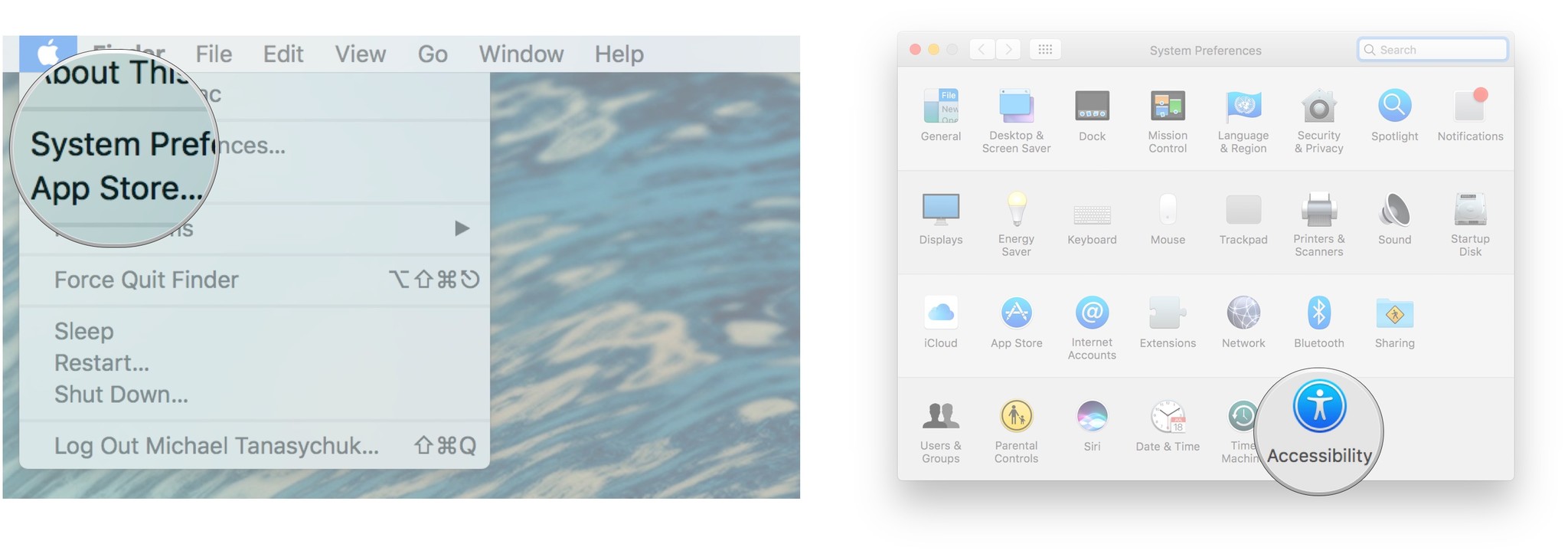
- Click Display in the menu on the left.
-
Click the checkbox next to Use grayscale.

How to use shapes to differentiate some settings
In the example of Messages, when you click Messages in the menu bar, you have the option to switch from "Available" to "Away" and these are denoted by colored bubbles (green for Available, red for away), but by enable Differentiate without color, you'll see a green circle and a red square instead, which is a boon to color blind folks.
- Click the Apple menu on the top left of your screen.
- Click System Preferences.
-
Click Accessibility.
- Click Display in the menu on the left.
-
Click the checkbox next to Differentiate without color.

How to reduce motion
Reducing motion on your Mac is new to macOS Sierra, and it makes animations more subtle. For instance, when you activate the dashboard, the windows jump instead of slide, and they crossfade back into place.
- Click the Apple menu on the top left of your screen.
- Click System Preferences.
-
Click Accessibility.
- Click Display in the menu on the left.
-
Click the checkbox next to Reduce motion.

How to increase contrast
Increasing contrast on your Mac can help text stand out more clearly and can help buttons and app icons appear more pronounced as well.
- Click the Apple menu on the top left of your screen.
- Click System Preferences.
-
Click Accessibility.
- Click Display in the menu on the left.
-
Click the checkbox next to Increase contrast.

How to reduce transparency
Reducing transparency helps your Dock and desktop icons stand out more and also makes the top menu bar opaque so that you can clearly see all your app icons and menu items.
- Click the Apple menu on the top left of your screen.
- Click System Preferences.
-
Click Accessibility.
- Click Display in the menu on the left.
-
Click the checkbox next to Reduce transparency.

How to change the display contrast
- Click the Apple menu on the top left of your screen.
- Click System Preferences.
-
Click Accessibility.
- Click Display in the menu on the left.
-
Click and drag the slider next to Display contrast to increase or decrease.

How to change cursor size and enable/disable shake mouse pointer to locate
Apple occasionally offers updates to iOS, watchOS, tvOS, and macOS as closed developer previews or public betas for iPhone, iPad, Apple TV and Mac (sadly, no public beta for the Apple Watch). While the betas contain new features, they also contain pre-release bugs that can prevent the normal use of your iPhone, iPad, Apple Watch, Apple TV, or Mac, and are not intended for everyday use on a primary device. That's why we strongly recommend staying away from developer previews unless you need them for software development, and using the public betas with caution. If you depend on your devices, wait for the final release.
In the upcoming macOS Catalina update, the ability to change the curse size and enable/disable shake mouse pointer to locate has been moved to a new tab in the Accessibility Display properties. Currently, this function is located on the main Display page.
Changing the cursor size:
- Click the Apple menu on the top left of your screen.
- Click System Preferences.
-
Click Accessibility.
- Click Display in the menu on the left.
- Click on the Cursor tab on the right side of the screen.
-
Click and drag the slider next to Cursor size.

How to enable/disable shake mouse pointer to locate:
If you can't find your mouse cursor on your screen, you can enable the shake feature and your mouse cursor will get bigger when you shake your mouse.
- Click the Apple menu on the top left of your screen.
- Click System Preferences.
-
Click Accessibility.
- Click Display in the menu on the left.
- Click on the Cursor tab on the right side of the screen.
- Click the checkbox next to Shake mouse pointer.

Great add-ons for Mac
Your Mac could be even more useful with one of our favorite accessories.
Bose Companion 20
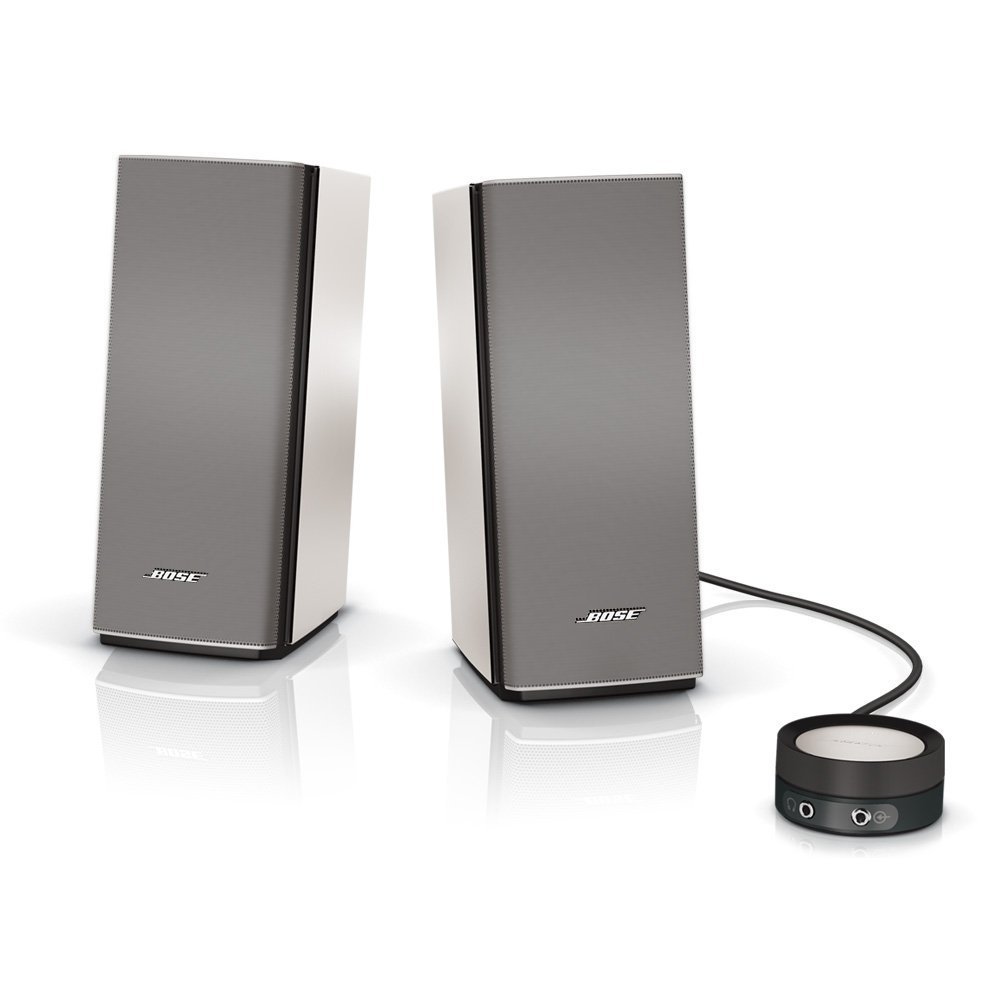
These beautiful speakers offer a balanced sound in a stylish package. With no knobs on the front, the volume is controlled through a small pod attached to the right speaker, which also holds the ports for your headphones or other audio devices.
LG 27UK850-W

An excellent 4K monitor, the LG 27UK850-W offers crystal-clear picture and beautiful colors, making it a great option for your Mac. It also features USB-C, which allows you to use a single cable to transfer both video and data between your Mac and the monitor.
Blackmagic eGPU Pro
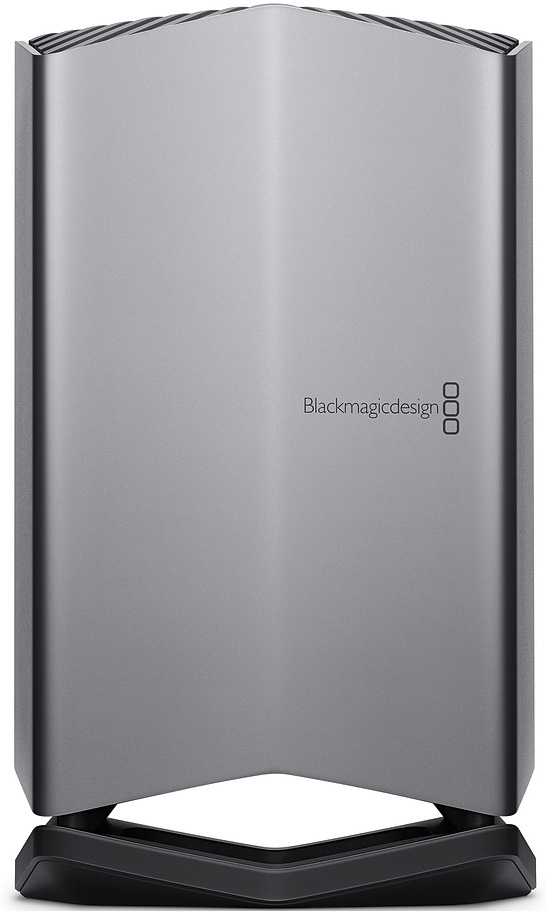
This external Thunderbolt 3 GPU offers a workstation-class graphics experience to enhance what your Mac is capable of, utilizing Radeon RX Vega 56 graphics with 8GB for HBM2 memory for a massive boost in performance.
Questions?
Questions about using accessibility on Mac? Let us know in the comments below!
Updated July 2019: Updated for latest macOS version.


No comments:
Post a Comment